
Are you struggling to track your Shopify sales accurately in GA4? You are not alone. One of the biggest issues high-ticket eCommerce business owners face is data discrepancy—where your Shopify dashboard says one thing, and Google Analytics says another. This leads to poor ad optimization and wasted budget.
In this guide, I will show you exactly how to set up Google Analytics GA4 eCommerce tracking on Shopify with Google Tag Manager. By the end of this tutorial, you will be able to track sales with precision and optimize your ads for maximum ROI.
What You Will Learn In This Guide
- How to install a robust Data Layer using Shopify Customer Events (Custom Pixels).
- How to configure Google Tag Manager triggers and variables for dynamic data.
- How to set up essential GA4 tags for the entire customer journey (View Item to Purchase).
- How to verify your data using Debug mode to ensure 100% accuracy.
Step 1: Connect the Shopify Data Layer
The foundation of accurate ga4 ecommerce tracking shopify is the Data Layer. This code pushes product information (price, name, currency) dynamically from your store to Google Tag Manager.
We will use Shopify’s modern “Customer Events” feature to do this securely.
- Log in to your Shopify Admin.
- Go to Settings > Customer Events.
- Click Add Custom Pixel.
- Name your pixel (e.g., “GTM Data Layer”) and click Add Pixel.
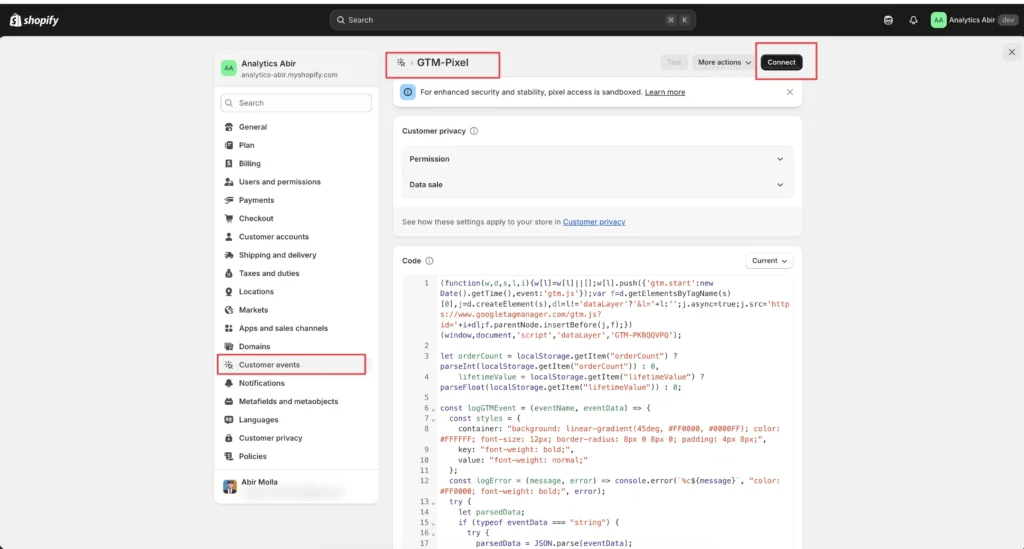
Once the pixel editor is open, delete any existing code and paste in the Data Layer code (Copy the “Checkout Web Pixel”).
Crucial Step: Scroll to the top of the code and replace the placeholder with your actual Google Tag Manager Container ID (formatted as
GTM-XXXXXX).
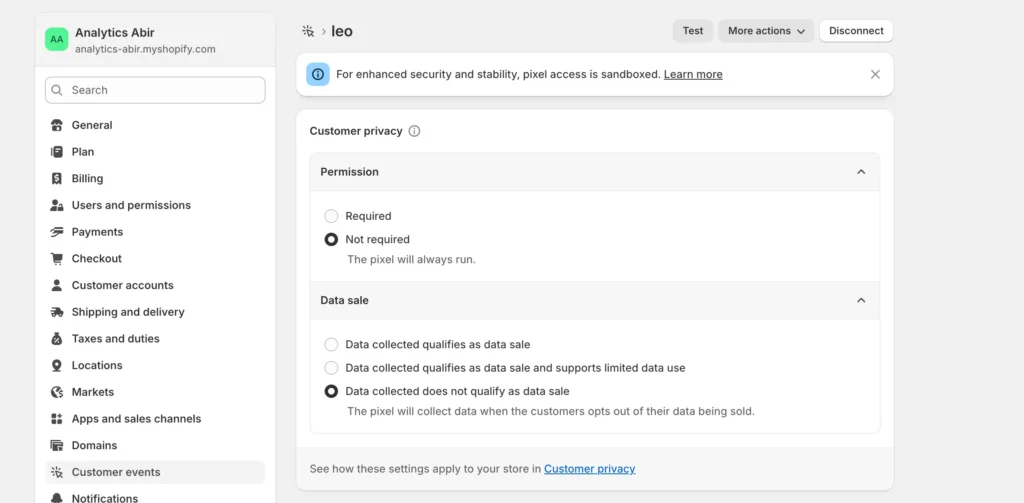
Finally, configure the pixel privacy settings:
- Data Sale: Select “Does not qualify”.
- Permission: Select “Not required”.
- Click Connect.
Step 2: Configure GTM Triggers and Variables
Now that Shopify is sending data, we need google tag manager ecommerce tracking to catch it. Here is how to do it manually for full control.
Creating Variables
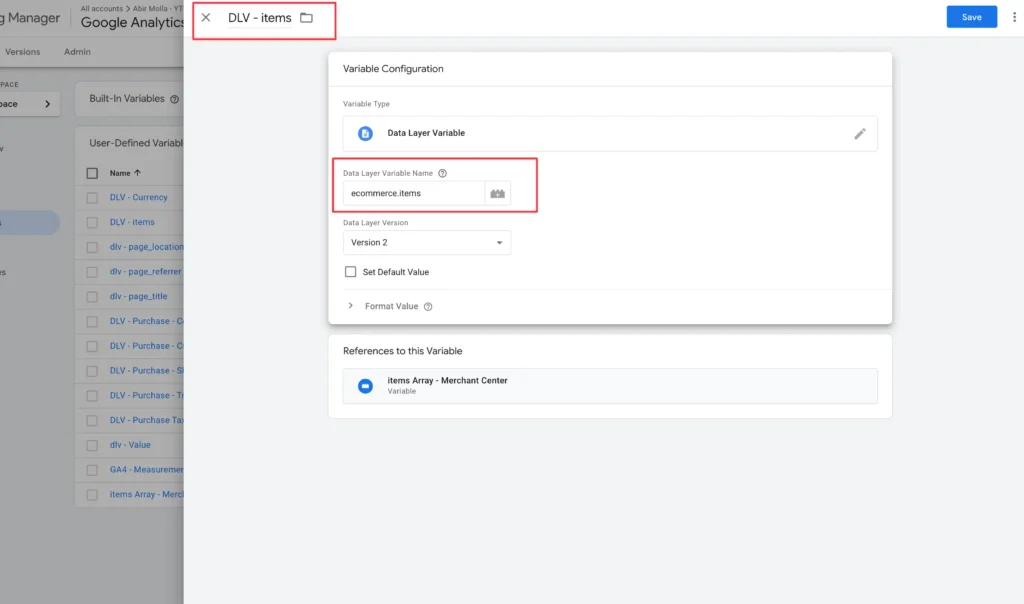
We need variables to read the data layer. In GTM, go to Variables > User-Defined Variables > New.
You will need to create Data Layer Variables for:
ecommerce.items(The product array)ecommerce.currencyecommerce.valueecommerce.transaction_id(For purchases)
Creating Triggers
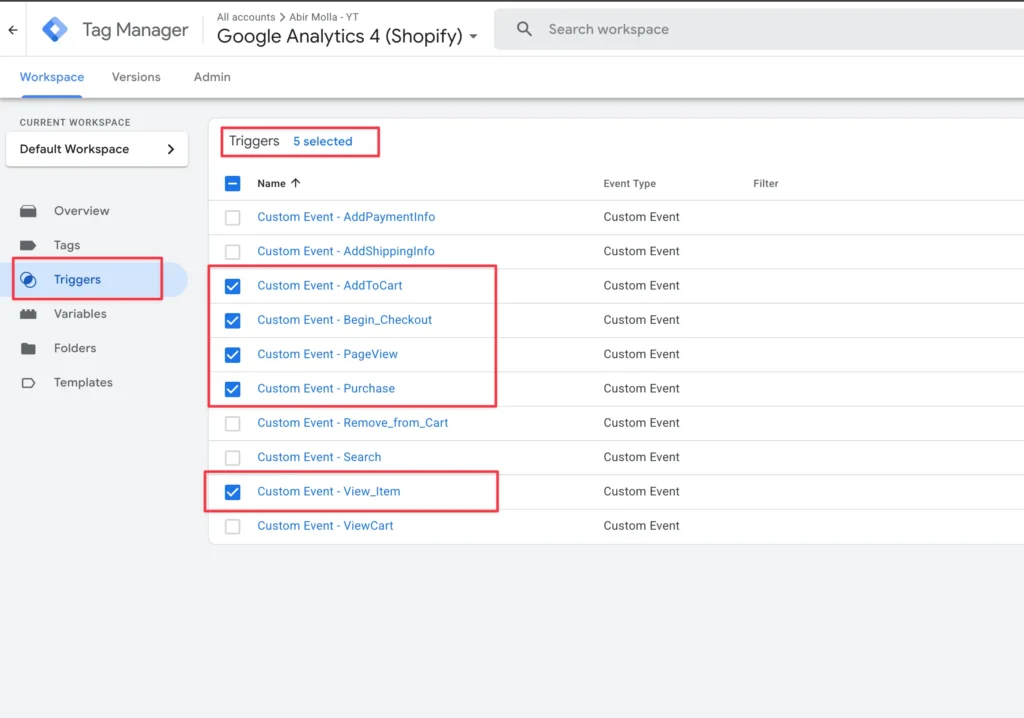
Triggers tell GTM when to fire a tag. Create a Custom Event trigger for each stage of the funnel:
view_itemadd_to_cartbegin_checkoutpurchase
Feeling Overwhelmed by Code?
Setting up Data Layers and GTM variables can be tricky. One small typo can break your tracking.
Let me handle the technical heavy lifting for you.
Step 3: Setting Up GA4 Event Tags
Now we will create the tags that send data to Google Analytics.
The Configuration Tag (Page View)
Create a new tag: Google Analytics: GA4 Event.
- Measurement ID: Enter your GA4 Measurement ID (found in GA4 Admin > Data Streams).
- Event Name:
page_view. - Trigger: All Pages (or the specific custom event if using the new pixel method).
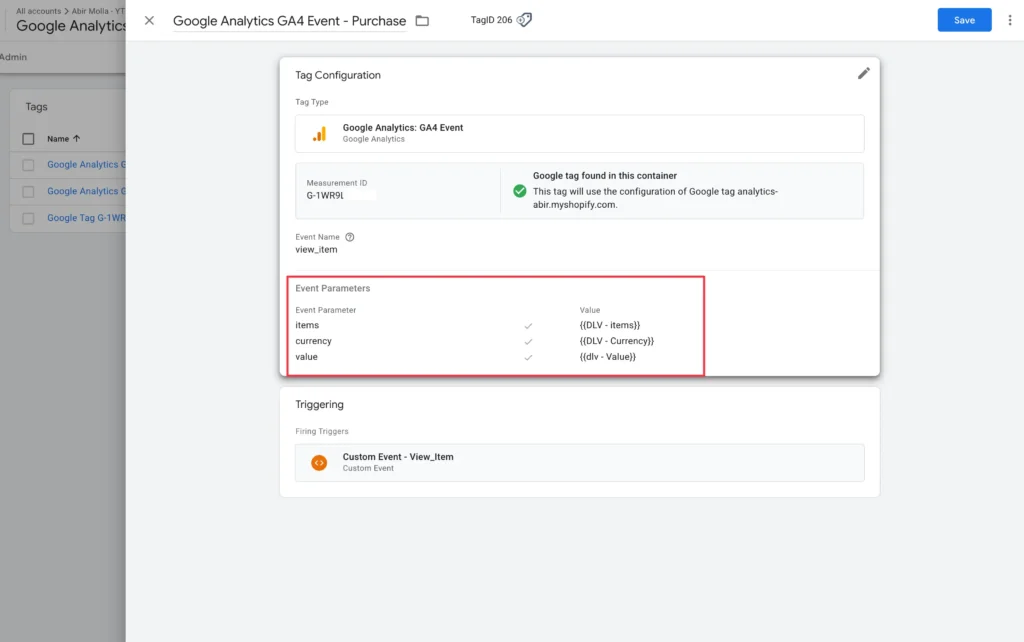
Product View (View Item)
This tracks when someone views a product page.
Tag Type: GA4 Event.
Event Name: view_item.
Event Parameters: This is critical. You must add:
items: {{ecommerce.items}}currency: {{ecommerce.currency}}value: {{ecommerce.value}}
Trigger: view_item (Custom Event).
Add To Cart & Checkout Steps
Repeat the process above for the following events. The Event Parameters (items, currency, value) remain the same, but the Event Name and Trigger change:
- Add to Cart: Event Name
add_to_cart. - View Cart: Event Name
view_cart. - Begin Checkout: Event Name
begin_checkout. - Add Shipping Info: Event Name
add_shipping_info. - Add Payment Info: Event Name
add_payment_info.
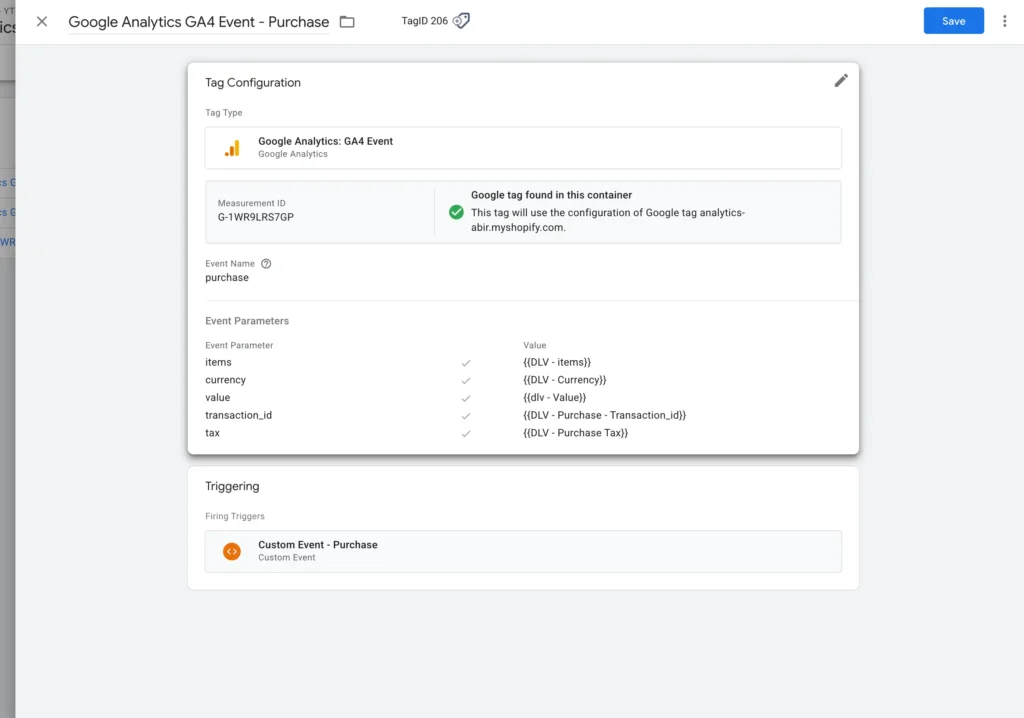
The Purchase Tag (The Most Important Step)
This tracks your actual revenue. It requires extra parameters to ensure how to set up google analytics 4 conversion tracking shopify is successful.
Event Name: purchase
Additional Parameters:
transaction_id: {{ecommerce.transaction_id}}coupon: {{ecommerce.coupon}} (optional)shipping: {{ecommerce.shipping}} (optional)tax: {{ecommerce.tax}} (optional)
Step 4: Testing and Validation
Never publish without testing.
- Click Preview in GTM to open the Debug interface.
- Enter your Shopify URL and connect.
- Install the Google Analytics Debugger Chrome extension and turn it on.
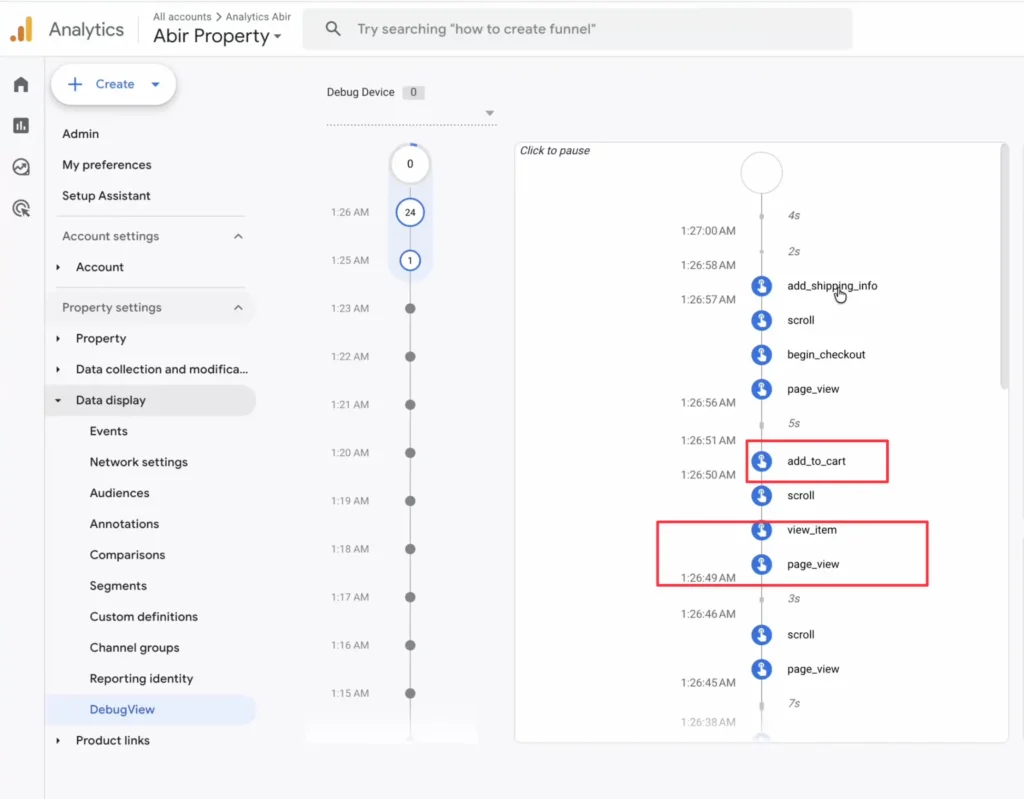
- Go to your Shopify store and perform a test purchase (browse, add to cart, checkout).
- Go to GA4 > Admin > DebugView.
You should see the events appearing in real-time. Click on the purchase event to ensure the value and transaction_id are correct.
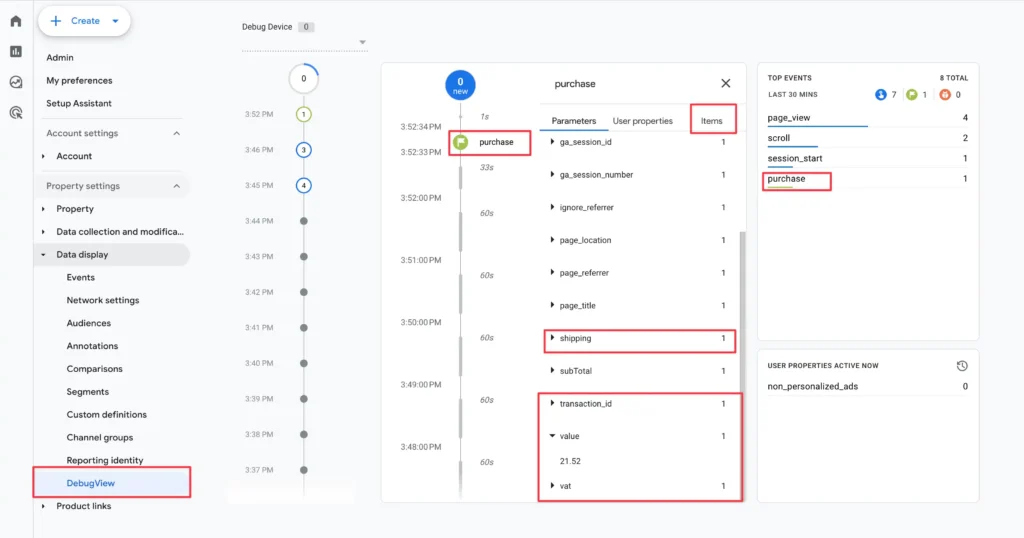
Expert Note: If you see data in DebugView, it means your setup is working. If your real-time reports show revenue from the United States (or your target location), your ga4 ecommerce tracking with gtm is live and accurate.
Conclusion: Data You Can Trust
Setting up Google Analytics GA4 eCommerce tracking on Shopify with Google Tag Manager allows you to see the full picture of your customer’s journey. With this setup, you can finally trust your ROAS data and scale your winning campaigns.
However, the digital landscape changes fast. If you want to ensure your tracking remains bulletproof, you need a strategy that goes beyond the basics.
Stop Guessing with Your Ad Spend
Accurate tracking is the difference between a profitable store and a money pit. If you want an expert to implement this setup for you, or if you need a comprehensive audit of your current tracking pixel, let’s talk.